Someone asks ChatGPT for a local plumber, a dentist, or a place to get their garage door fixed. ChatGPT provides recommendations, but your business may or may not appear in those results. If it does, the information might not be accurate.
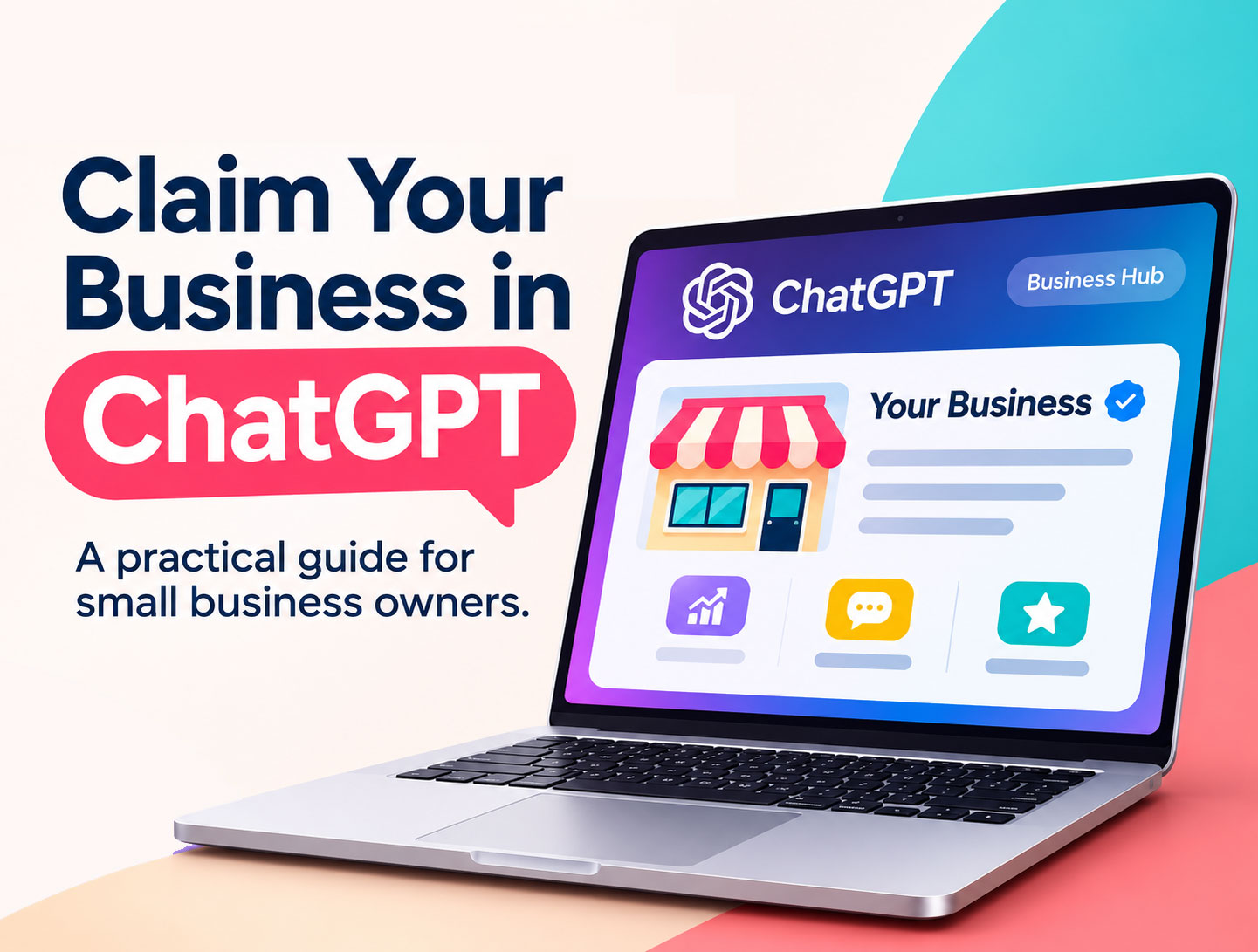
On November 10, 2026, OpenAI introduced Business Hub, a new tool that allows business owners to claim their business, manage their information, and see how people discover their business in ChatGPT. It’s currently in beta, so expect some changes along the way. Here’s what you need to know and how to get started.
What Does Claiming Your Business Actually Do?
Claiming your business in ChatGPT allows you to establish ownership of your listing, manage certain business information, and access basic insights, including mentions and website clicks. However, it does not guarantee better visibility, more recommendations, or new customers.
If your business is eligible, claiming your listing is worth considering. Business Hub is currently in beta, and eligibility for service-area businesses remains unclear.
At Moxie, we believe that being found is good, but getting customers is better. Claiming your business in ChatGPT should complement your existing marketing efforts, not replace them.
Before You Start: Check Your Other Business Listings
ChatGPT may use information from multiple sources when answering questions about your business. Before claiming your listing, take a few minutes to review your existing online presence, including your:
Google Business Profile
Business website
Make sure your business name, address, phone number, website, and hours are accurate and consistent. If your information is wrong elsewhere, claiming another listing isn’t going to solve the bigger problem.
What You’ll Need to Claim Your Business
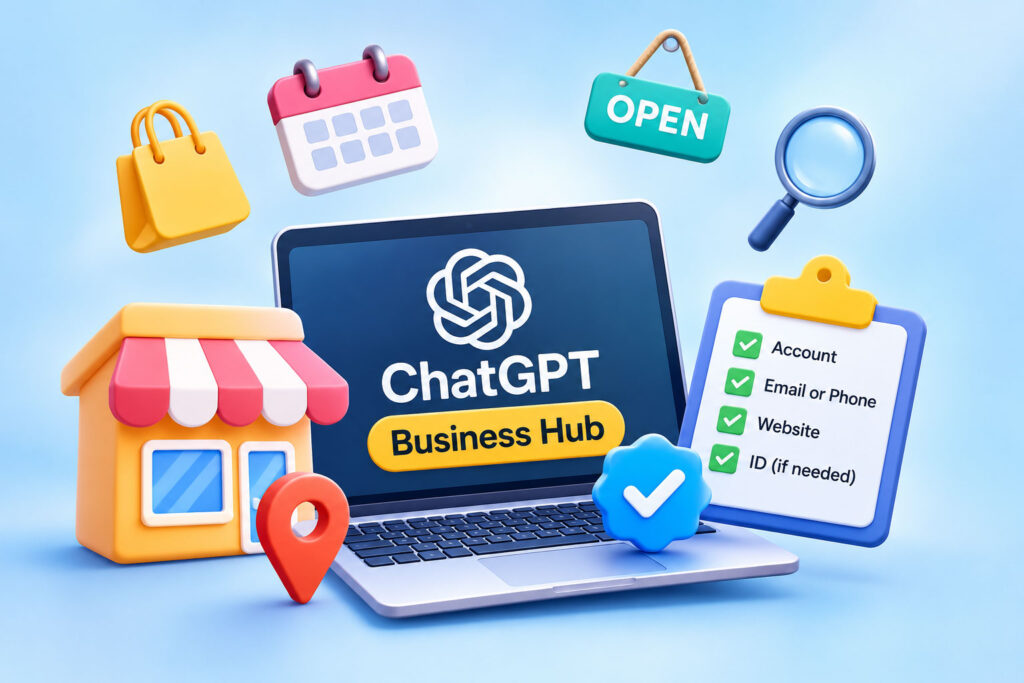
Before you get started, have the following information available:
A ChatGPT account
Access to your business phone or email
Access to your website domain, if required
A government-issued ID
Business registration documents, if requested
Set aside about 20 minutes to get started, keeping in mind that verification and approval times vary.
How to Claim Your Business in ChatGPT
Step 1: Find Your Business
Sign in to ChatGPT using your web browser and look for Business Hub in the left-hand menu. You can also visit ChatGPT Business Hub directly.
Search for your business name and select the correct listing. Double-check that you’ve selected your business and location, not another company with a similar name.
During the beta, eligibility is limited. Local businesses may only be able to claim existing listings. If your business isn’t listed, the option to add it may not be available yet.
Step 2: Verify Business Ownership
ChatGPT will show you the verification methods available for your business. These may include:
A verification code sent by text message or phone call
A verification code sent to your business email
Verification through your website domain
Connecting your Shopify store
Choose the option that works best for you. If you’re asked to add a DNS record to your domain and have no idea what that means, forward the instructions to whoever manages your website or hosting. There’s no need to start changing technical settings yourself.
Step 3: Wait for Claim Approval
OpenAI will review your claim and email you with a decision or a request for additional information. Approval times vary, so don’t assume you’ll be approved the same day. Avoid submitting another request while your claim is under review.
Step 4: Complete Identity Verification
Once your claim is approved, you’ll need to complete an additional identity verification process through a company called Persona. You may be asked to provide a government-issued ID, business registration information, or proof that you’re authorized to represent the business.
An owner or authorized representative must complete this process. Once your identity verification is approved, a blue verified badge will appear next to your business name, and you’ll gain access to additional profile management features and business insights.
Step 5: Update Your Business Information
Once you’re verified, review the information available in your business profile. You can update details such as:
Website URL
Business description
Business category
Business logo
Cover photo
Applicable business policies
When writing your business description, explain what you do the way you would to a potential customer. Be specific, use plain language, and avoid stuffing it with keywords.
OpenAI reviews updates before publishing them. Changes may take time to appear, and ChatGPT may still use information from other sources.
Understanding ChatGPT Business Insights
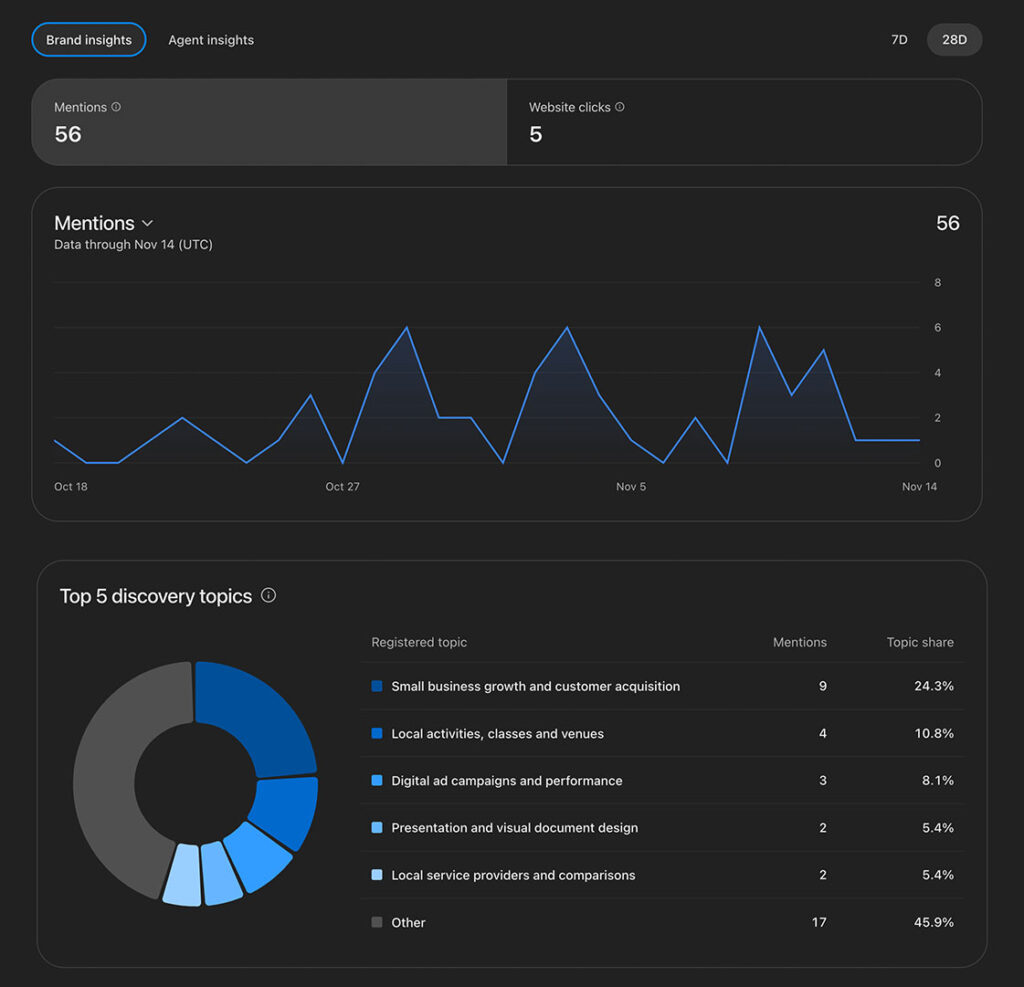
Once verified, you’ll have access to an Insights section showing activity over the previous 28 days. This gives you some information about how people discover your business through ChatGPT.
Mentions: How often your business appears in ChatGPT results.
Website clicks: How often someone clicks through to your website.
Discovery topics: Common subjects discussed in answers that reference your business.
You won’t see individual customer conversations or the exact questions people asked. There are also minimum reporting requirements, so an empty dashboard doesn’t necessarily mean nobody is seeing your business.
ChatGPT Business Hub FAQs
Does It Cost Anything to Claim Your Business?
What If My Verification Fails?
What If I Have Multiple Business Locations?
Can My Marketing Agency Manage My ChatGPT Business Profile?
Is ChatGPT Replacing Google Business Profile?
No. Your Google Business Profile, website, customer reviews, and other online listings remain important. ChatGPT Business Hub gives you an additional way to manage your online presence, not a reason to abandon the platforms you already use.
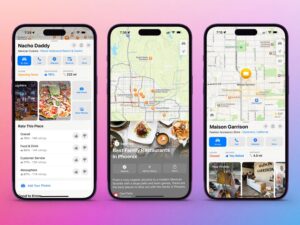
Before claiming your business in ChatGPT, make sure your Google Business Profile and Apple Maps listings are accurate. If your website is outdated, your messaging is confusing, or customers can’t easily contact you, a verified badge isn’t going to fix those problems.
Good marketing starts with a plan, not a new tool.
Need Help Getting Your Business Found Online?
If you’re unsure how your business is showing up online or where to focus your marketing efforts, request a Free Visibility Review.
Helpful Resources
Business Hub is currently in beta. Eligibility, verification requirements, and available features may change.

Written by Stephanie Munson, founder of Moxie Creative Solutions. Stephanie helps small businesses in the Inland Empire get found online through SEO, branding, and websites that actually convert.